<?xml version="1.0" encoding="UTF-8"?>
<feed xmlns="http://www.w3.org/2005/Atom" xml:lang="">
                        <id>https://support.e2bdigital.com/feed/795</id>
                                <link href="https://support.e2bdigital.com/feed/795" rel="self"></link>
                                <title><![CDATA[Web Design Support Article Feed]]></title>
                    
                                <subtitle></subtitle>
                                                    <updated>2020-01-12T02:12:01+00:00</updated>
                        <entry>
            <title><![CDATA[Setting up a domain name with NameCheap]]></title>
            <link rel="alternate" href="https://support.e2bdigital.com/articles/setting-up-a-domain-name-with-namecheap-1655" />
            <id>https://support.e2bdigital.com/1655</id>
            <author>
                <name><![CDATA[Erdal Bayram]]></name>
            </author>
            <summary type="html">
                <![CDATA[<h2>How do I change my nameservers with NameCheap ?</h2><p><br /></p><p>To make your existing domain name work with our hosting, you need to have your domain name servers pointed to our Server.  Below are instructions on how to change your name servers with NameCheap.  If you need assistance, you can contact our Support.
</p><p>Note:  Changing your name servers does not transfer your domain registration.  You will need to keep your domain current with your current registrar.
</p><p><b>IMPORTANT EMAIL NOTE:
</b></p><p>•	If you have domain-based email (i.e. info@mydomain.com), please send your email provider's MX records to our Support Team BEFORE you change your name servers (the next step). If you change your name servers before we have your email's MX records set up on our servers, your email will go down. Your email will be restored within 2-24 hours after your MX records have been added to our servers. 
</p><p>________________________________________
</p><p>
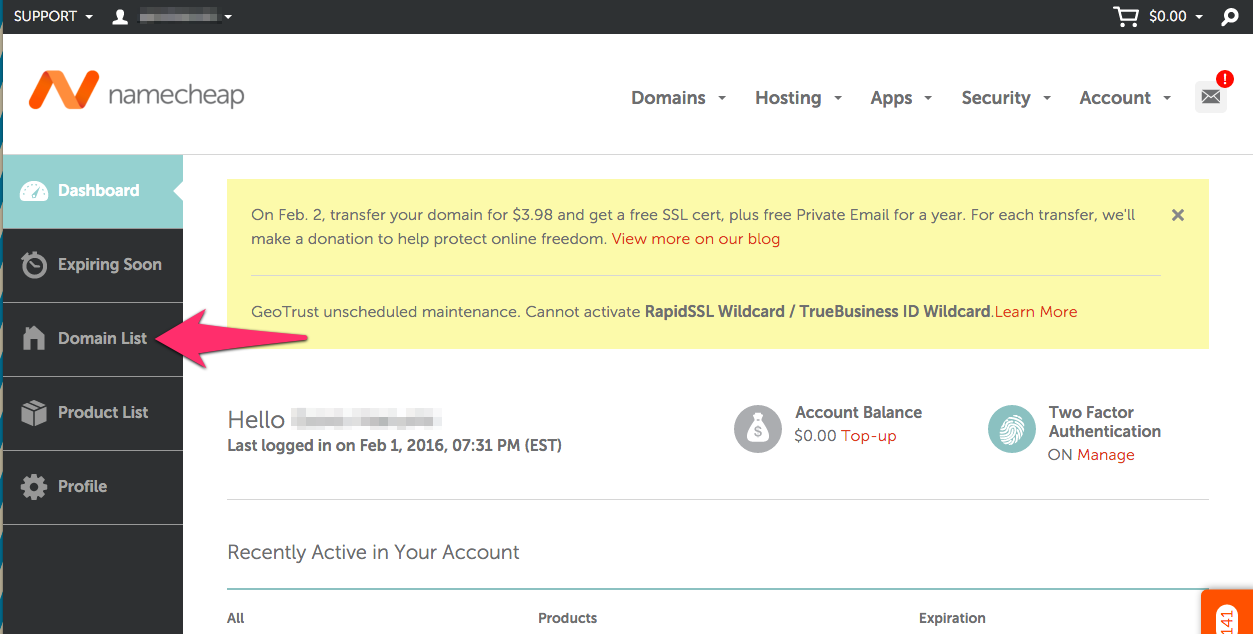
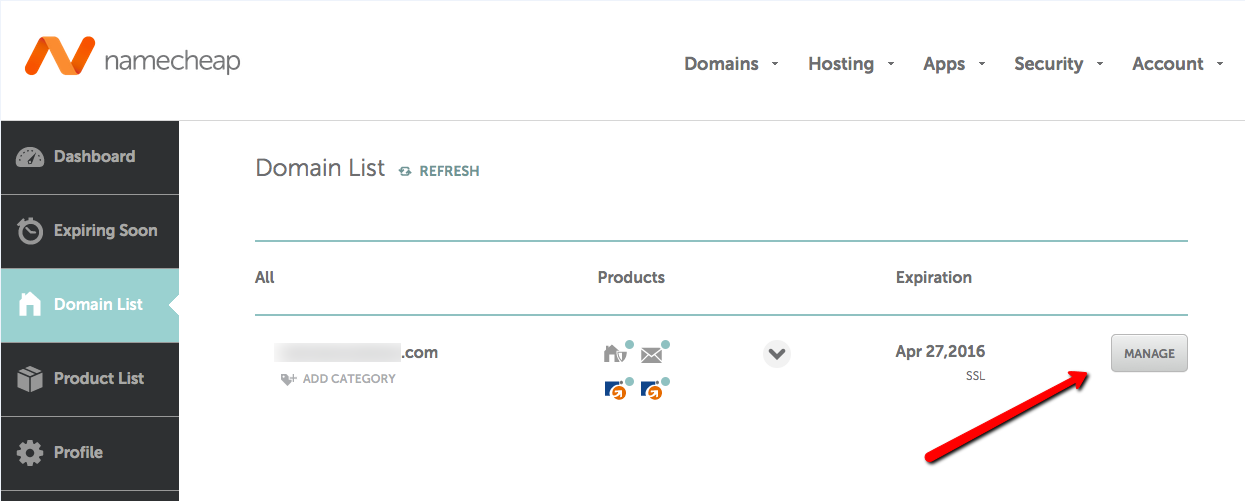
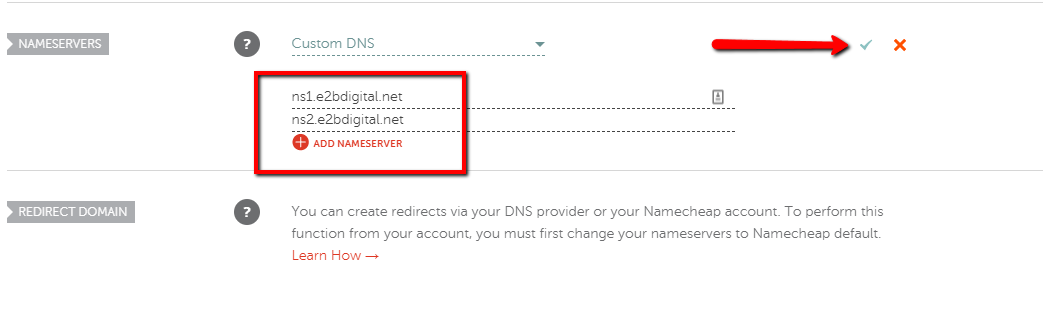
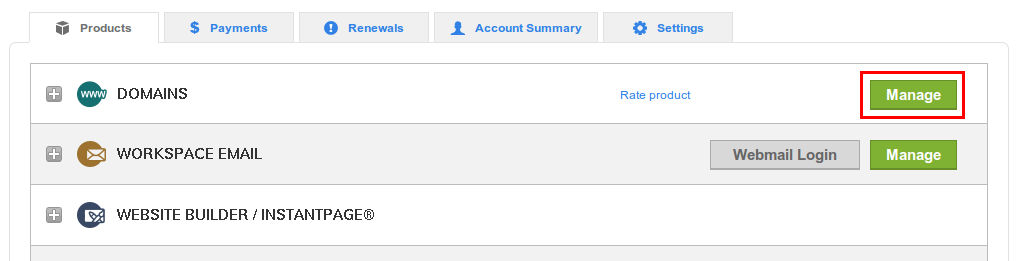
</p><p><br /></p><p>1. Log into <a href="https://www.namecheap.com/" target="_blank" rel="noreferrer noopener">Namecheap.com</a> then go to Domain List.</p><p><br /></p><p><img src="https://support-hub--assets.s3.eu-west-2.amazonaws.com/assets/289/images/TodiezKma49Jv8ujAl7Ie5v0D3C7DDUVLc2xVkpa.png" style="width:890.62px;height:450.641px;" alt="TodiezKma49Jv8ujAl7Ie5v0D3C7DDUVLc2xVkpa.png" /></p><p><br /></p><p>2. Click the Manage button (to the right of your domain).</p><p></p><p><img src="https://support-hub--assets.s3.eu-west-2.amazonaws.com/assets/289/images/WxjufbUTg4IGbQgoR4E9tWK49Er2waGSmIWCPcBh.png" style="width:749.703px;height:301.687px;" alt="WxjufbUTg4IGbQgoR4E9tWK49Er2waGSmIWCPcBh.png" /><br /></p><p>3. By default, the nameservers on your domain will be set to Namecheap’s BasicDNS which you will need to change. Under the “Domain” tab select “Custom DNS” from the dropdown in the nameservers section. </p><p><img src="https://support-hub--assets.s3.eu-west-2.amazonaws.com/assets/289/images/FOI90AXpGiIqW1MT1BfTBbJjGdwXZMKipn6P8fYB.png" style="width:750.703px;height:334.369px;" alt="FOI90AXpGiIqW1MT1BfTBbJjGdwXZMKipn6P8fYB.png" /></p><p><br /></p><p>4. In the relevant boxes, enter the following nameservers:
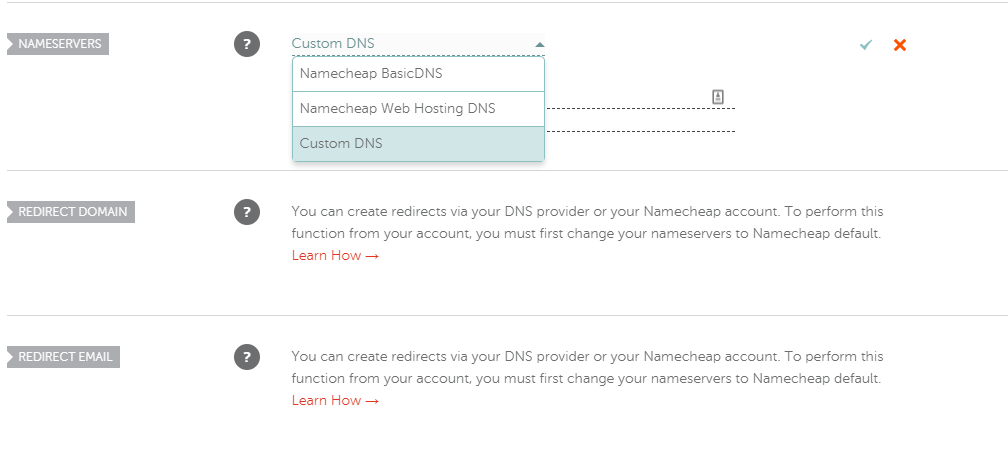
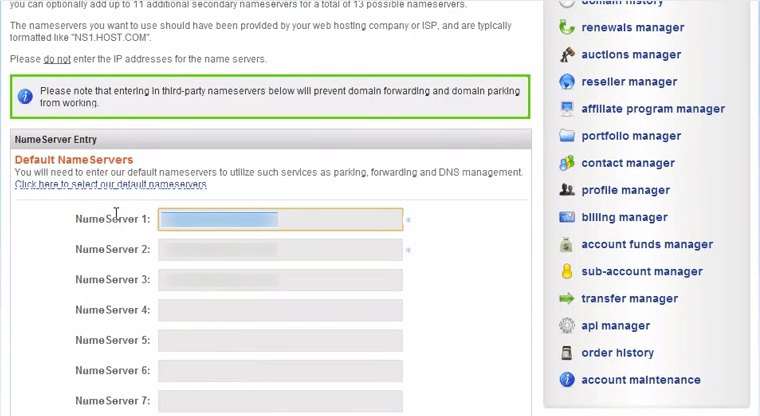
</p><p>Nameserver 1:<b> ns1.e2bdigital.net
</b></p><p>Nameserver 2: <b>ns2.e2bdigital.net
</b></p><p><b><br /></b></p><p><img src="https://support-hub--assets.s3.eu-west-2.amazonaws.com/assets/289/images/ibYAsUjylYnWMowKVK2I3PbZEUduJgxy9QaNd552.png" style="width:750.606px;height:225.969px;" alt="ibYAsUjylYnWMowKVK2I3PbZEUduJgxy9QaNd552.png" /><b><br /></b></p><p>5. And click the green check mark when finished.</p><p><br /></p><p>After you update your name servers it may take up to 24-48 hours for your new website to be active. 
</p><p><b>Important: </b>You must change your domain's name servers in order for your domain name to be active with our Server. Name server changes take 24-48 hours to propagate.
</p><p>If you need assistance with this or any aspect of your account, you can reach our Support team.
</p><p>
</p><p><br /></p>]]>
            </summary>
                                    <updated>2020-01-12T02:00:04+00:00</updated>
        </entry>
            <entry>
            <title><![CDATA[Setting up a domain name with GoDaddy]]></title>
            <link rel="alternate" href="https://support.e2bdigital.com/articles/setting-up-a-domain-name-with-godaddy-1656" />
            <id>https://support.e2bdigital.com/1656</id>
            <author>
                <name><![CDATA[Erdal Bayram]]></name>
            </author>
            <summary type="html">
                <![CDATA[<h2><b>How do I change my domain nameservers with GoDaddy?</b></h2><h2><b><br /></b></h2><h2><b>
</b></h2><p>
</p><p>To make your existing domain name work with our hosting, you need to have your domain name servers pointed to our Server.  Below are instructions on how to change your name servers with Godaddy.  If you need assistance, you can contact our Support.
</p><p>Note:  Changing your name servers does not transfer your domain registration.  You will need to keep your domain current with your current registrar.
</p><p><b>IMPORTANT EMAIL NOTE:
</b></p><p>•	If you have domain-based email (i.e. info@mydomain.com), please send your email provider's MX records to our Support Team BEFORE you change your name servers (the next step). If you change your name servers before we have your email's MX records set up on our servers, your email will go down. Your email will be restored within 2-24 hours after your MX records have been added to our servers. 
</p><p>________________________________________
</p><p>
</p><p>1. Log in to your <a href="http://www.godaddy.com/" target="_blank" rel="noreferrer noopener">GoDaddy</a> Account Manager.
</p><p>2. Next to Domains, click Manage.</p><p><img src="https://support-hub--assets.s3.eu-west-2.amazonaws.com/assets/289/images/oVkLDVNXVkWFRJOBEughrVkZ9bSWlkdfS2ruPDk9.png" style="width:745.1px;height:190.641px;" alt="oVkLDVNXVkWFRJOBEughrVkZ9bSWlkdfS2ruPDk9.png" /><br /></p><p><br /></p><p>
</p><p>If you're using the <b>Card View</b>, follow these steps:
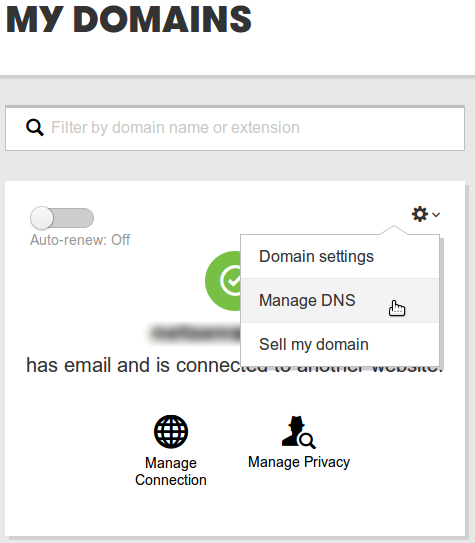
</p><p>•	Select the domain name you want to use, click the gear icon (Settings) and select Manage DNS.</p><p><br /></p><p><img src="https://support-hub--assets.s3.eu-west-2.amazonaws.com/assets/289/images/sVnZ6DwjJn0eKxREs2auAY03mzCsPskfy3X3sgEA.png" alt="sVnZ6DwjJn0eKxREs2auAY03mzCsPskfy3X3sgEA.png" /></p><p><br /></p><p>
</p><p>•	Under Nameservers, click Change.</p><p><br /></p><p><img src="https://support-hub--assets.s3.eu-west-2.amazonaws.com/assets/289/images/8WPlbxAiliHSkS9C6WydiHfElUSivEg39Se3iQVq.png" alt="8WPlbxAiliHSkS9C6WydiHfElUSivEg39Se3iQVq.png" /><br /></p><p><br /></p><p>
</p><p>•	Under Choose your new nameserver type, select Custom.</p><p><br /></p><p><img src="https://support-hub--assets.s3.eu-west-2.amazonaws.com/assets/289/images/8KYlj2602ILfLIW9Ct6zaS76vrUb47FlScWUFkf4.png" alt="8KYlj2602ILfLIW9Ct6zaS76vrUb47FlScWUFkf4.png" /><br /></p><p><br /></p><p>
</p><p>•	Enter the following Name Servers in the first two boxes:
</p><p>                   1) <b>ns1.e2bdigital.net
</b></p><p>                   2) <b>ns2.e2bdigital.net
</b></p><p>•	Click on Save.</p><p><br /></p><p>
</p><p>If you're using the <b>List View</b>, follow these steps:</p><p>•	Select the domain names you want to modify.
</p><p>•	From the Nameservers menu, select Set Nameservers.
</p><p>•	Under Setup type, select Custom.
</p><p>•	Enter the following Name Servers in the first two boxes:
</p><p>                   1) <b>ns1.e2bdigital.net
</b></p><p>                   2) <b>ns2.e2bdigital.net
</b></p><p>•	Click on OK.</p><p><br /></p><p>
</p><p>After you update your name servers it may take up to 24-48 hours for your new website to be active. 
</p><p><b>Important:</b> You must change your domain's name servers in order for your domain name to be active with our Server. Name server changes take 24-48 hours to propagate.
</p><p>If you need assistance with this or any aspect of your account, you can reach our Support team.
</p><p>
</p><p><br /></p>]]>
            </summary>
                                    <updated>2020-01-12T02:12:01+00:00</updated>
        </entry>
            <entry>
            <title><![CDATA[Setting up a domain name with 1and1]]></title>
            <link rel="alternate" href="https://support.e2bdigital.com/articles/setting-up-a-domain-name-with-1amp1-1657" />
            <id>https://support.e2bdigital.com/1657</id>
            <author>
                <name><![CDATA[Erdal Bayram]]></name>
            </author>
            <summary type="html">
                <![CDATA[<h2>How do I change my nameservers with 1&amp;1?</h2><p><br /></p><p>To make your existing domain name work with our hosting, you need to have your domain name servers pointed to our Server.  Below are instructions on how to change your name servers with 1&amp;1.  If you need assistance, you can contact our Support.
</p><p>Note:  Changing your name servers does not transfer your domain registration.  You will need to keep your domain current with your current registrar.
</p><p><b>IMPORTANT EMAIL NOTE:
</b></p><p>If you have domain-based email (i.e. info@mydomain.com), please send your email provider's MX records to our Support Team BEFORE you change your name servers (the next step). If you change your name servers before we have your email's MX records set up on our servers, your email will go down. Your email will be restored within 2-24 hours after your MX records have been added to our servers. 
</p><p>________________________________________
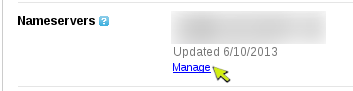
</p><p>Log in to the 1&amp;1 Control Panel using your Customer ID OR domain name and your password. 
</p><p>Note:  If your domain is locked and you are unable to access domains from your Administration panel, you may need to contact 1&amp;1 to request an unlock.
</p><p>•	Click the Domain Center link from the Domains panel.
</p><p>
</p><p>•	Check the box next to the domain to select it and click Edit DNS Settings from the Edit Domain Settings drop-down box above the list of domains.
</p><p>
</p><p>•	Select the Other Name Servers button from the Basic DNS Settings section of the menu.
</p><p>
</p><p>•	Under Basic DNS Settings, select My Name Server and enter the following server names:
</p><p>Primary    :  <b>ns1.e2bdigital.net
</b></p><p>Secondary: <b>ns2.e2bdigital.net 
</b></p><p>Click the Save button to save your settings.</p><p><br /></p><p>
</p><p>After you update your name servers it may take up to 24-48 hours for your new website to be active. 
</p><p><b>Important</b>: You must change your domain's name servers in order for your domain name to be active with our Server. Name server changes take 24-48 hours to propagate.
</p><p>If you need assistance with this or any aspect of your account, you can reach our Support team.
</p><p><br /></p>]]>
            </summary>
                                    <updated>2020-01-12T02:01:19+00:00</updated>
        </entry>
            <entry>
            <title><![CDATA[Setting up a domain name with 123-Reg]]></title>
            <link rel="alternate" href="https://support.e2bdigital.com/articles/setting-up-a-domain-name-with-123-reg-1658" />
            <id>https://support.e2bdigital.com/1658</id>
            <author>
                <name><![CDATA[Erdal Bayram]]></name>
            </author>
            <summary type="html">
                <![CDATA[<h2>How do I change my nameservers with 123-Reg?</h2><p><br /></p><p>To make your existing domain name work with our hosting, you need to have your domain name servers pointed to our Server.  Below are instructions on how to change your name servers with 123-Reg.  If you need assistance, you can contact our Support.
</p><p>Note:  Changing your name servers does not transfer your domain registration.  You will need to keep your domain current with your current registrar.
</p><p><b>IMPORTANT EMAIL NOTE:
</b></p><p>If you have domain-based email (i.e. info@mydomain.com), please send your email provider's MX records to our Support Team BEFORE you change your name servers (the next step). If you change your name servers before we have your email's MX records set up on our servers, your email will go down. Your email will be restored within 2-24 hours after your MX records have been added to our servers. 
</p><p>________________________________________
</p><p>
</p><p>1. Log into your 123-Reg Control Panel
</p><p>
</p><p>2. In the Domain Names section, select the domain name you wish to modify from the drop-down menu, then click on Manage.
</p><p>
</p><p>•	If your domain name is locked you will need to click on Unlock to make it available for changes.  Select the Manage Domain Locking option and click on the Unlock Domain link.  Once you have unlocked it (or if it is already unlocked), click on Back to Control Panel.
</p><p>
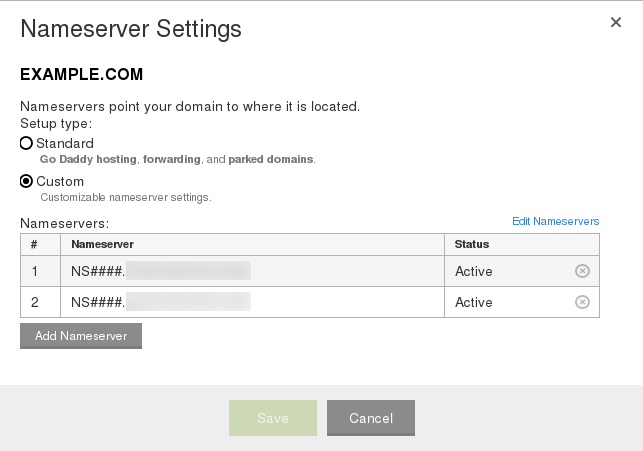
</p><p>3. Click on Change Nameservers.  In the relevant boxes, enter the following nameservers:
</p><p>Nameserver 1: <b>ns1.e2bdigital.net
</b></p><p>Nameserver 2: <b>ns2.e2bdigital.net
</b></p><p>4. Click on Change Nameservers to save the information you entered.  Wait for the message on the screen indicating the name servers were successfully changed.
</p><p>
</p><p>5. Click on Back to Control Panel.
</p><p>You should relock your domain name in order to prevent unauthorized changes. Simply click on Manage Domain Locking, then click on the Lock Domain button.
</p><ul><li><b>Note:</b>  If you receive a message indicating the name server change was not successful, the message will tell you why. The most common reason is a locked domain. You can return to the Control Panel and follow the steps above to unlock it. 
</li></ul><p><br /></p><p>After you update your name servers it may take up to 24-48 hours for your new website to be active. 
</p><p><b>Important:</b> You must change your domain's name servers in order for your domain name to be active with our Server. Name server changes take 24-48 hours to propagate.
</p><p>If you need assistance with this or any aspect of your account, you can reach our Support team.
</p><p><br /></p><p>
</p><p><br /></p>]]>
            </summary>
                                    <updated>2020-01-12T02:02:51+00:00</updated>
        </entry>
            <entry>
            <title><![CDATA[Setting up a domain name with NameSilo]]></title>
            <link rel="alternate" href="https://support.e2bdigital.com/articles/setting-up-a-domain-name-with-namesilo-1659" />
            <id>https://support.e2bdigital.com/1659</id>
            <author>
                <name><![CDATA[Erdal Bayram]]></name>
            </author>
            <summary type="html">
                <![CDATA[<h2>How do I change my nameservers with NameSilo?</h2><p><br /></p><p>To make your existing domain name work with our hosting, you need to have your domain name servers pointed to our Server.  Below are instructions on how to change your name servers with NameSilo.  If you need assistance, you can contact our Support.
</p><p>Note:  Changing your name servers does not transfer your domain registration.  You will need to keep your domain current with your current registrar.
</p><p><b>IMPORTANT EMAIL NOTE:
</b></p><p>If you have domain-based email (i.e. info@mydomain.com), please send your email provider's MX records to our Support Team BEFORE you change your name servers (the next step). If you change your name servers before we have your email's MX records set up on our servers, your email will go down. Your email will be restored within 2-24 hours after your MX records have been added to our servers. 
</p><p>________________________________________
</p><p>
</p><p>Visit your domain registrar, <a href="http://www.namesilo.com/" target="_blank" rel="noreferrer noopener">NameSilo</a>, and perform the following steps.
</p><p>
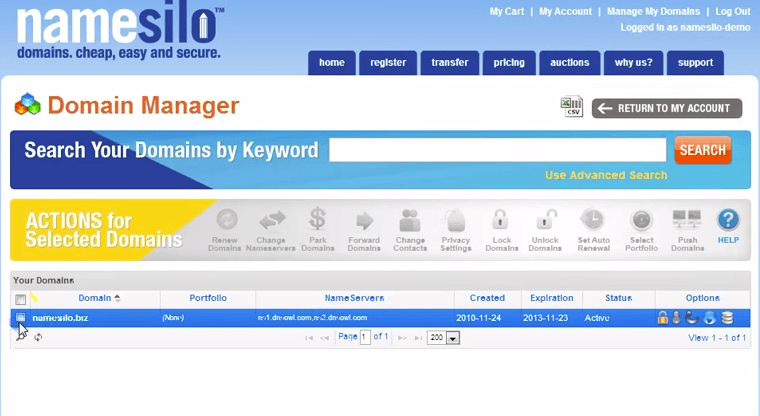
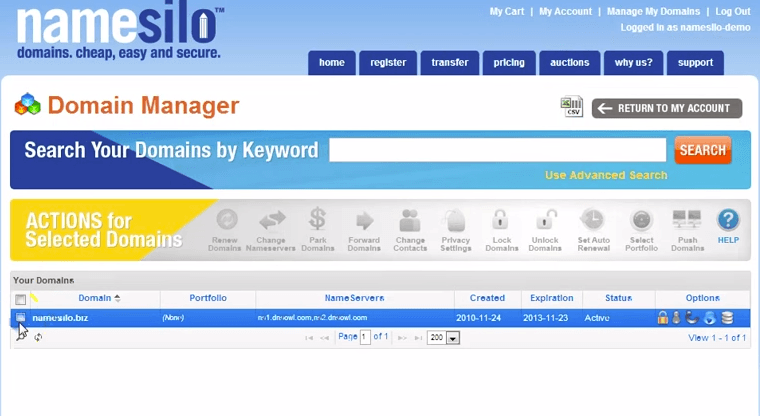
1. Go to the Domain Manager page within your account </p><p>2. Check the box next to the domain(s) you would like to update</p><p><img src="https://support-hub--assets.s3.eu-west-2.amazonaws.com/assets/289/images/GxV6rInIzxPJ9QvMSFA4OSHX10PwEDr5BI0VcrkY.png" style="width:747.703px;height:409.261px;" alt="GxV6rInIzxPJ9QvMSFA4OSHX10PwEDr5BI0VcrkY.png" /><br /></p><p>3. Select the “Change Nameservers” icon from the top of the domain list in the “ACTIONS for Selected Domains” section</p><p><img src="https://support-hub--assets.s3.eu-west-2.amazonaws.com/assets/289/images/QdyErdZAZMjygXF0AysIpdEBssOkD3tGalMjaARo.png" style="width:748.703px;height:409.808px;" alt="QdyErdZAZMjygXF0AysIpdEBssOkD3tGalMjaARo.png" /><br /></p><p><br /></p><p>4. Remove the existing name servers and fill out the respective fields with the name servers provided above:</p><p>Nameserver 1:<b> ns1.e2bdigital.net
</b></p><p>Nameserver 2: <b>ns2.e2bdigital.net
</b></p><p><b><br /></b></p><p><img src="https://support-hub--assets.s3.eu-west-2.amazonaws.com/assets/289/images/LMYluE2QabTfyGdjBcCUzW6dPJrJdVwwl9CqmAAV.png" style="width:749.703px;height:410.355px;" alt="LMYluE2QabTfyGdjBcCUzW6dPJrJdVwwl9CqmAAV.png" /><br /></p><p><br /></p><p>After you update your name servers it may take up to 24-48 hours for your new website to be active. 
</p><p><b>Important:</b> You must change your domain's name servers in order for your domain name to be active with our Server. Name server changes take 24-48 hours to propagate.
</p><p>If you need assistance with this or any aspect of your account, you can reach our Support team.
</p><p><br /></p>]]>
            </summary>
                                    <updated>2020-01-12T02:03:13+00:00</updated>
        </entry>
    </feed>